
Push Alerts
Listing, offer, message, and transfer updates — straight to your phone.
How to turn them on
- Log in and open your Profile page.
- In the Device Alerts card, hit "Turn on Alerts" — circled above.
- Approve the permission prompt your browser shows.
- Use the "Send Test Notification" button to confirm it's working.
You can turn alerts off anytime from the same card — and your email alerts keep working either way.
On iPhone (Safari)
Apple only allows web notifications after you add TGX to your Home Screen (Safari → Share → Add to Home Screen, iOS 16.4 or newer) and open it from there. Not installed yet? See the install guide.
On Android (installed app)
If TGX is installed on your home screen, Android controls its alerts separately — here's how to make sure they pop up with sound.
- On your home screen, press and hold the TGX icon until a menu pops up.
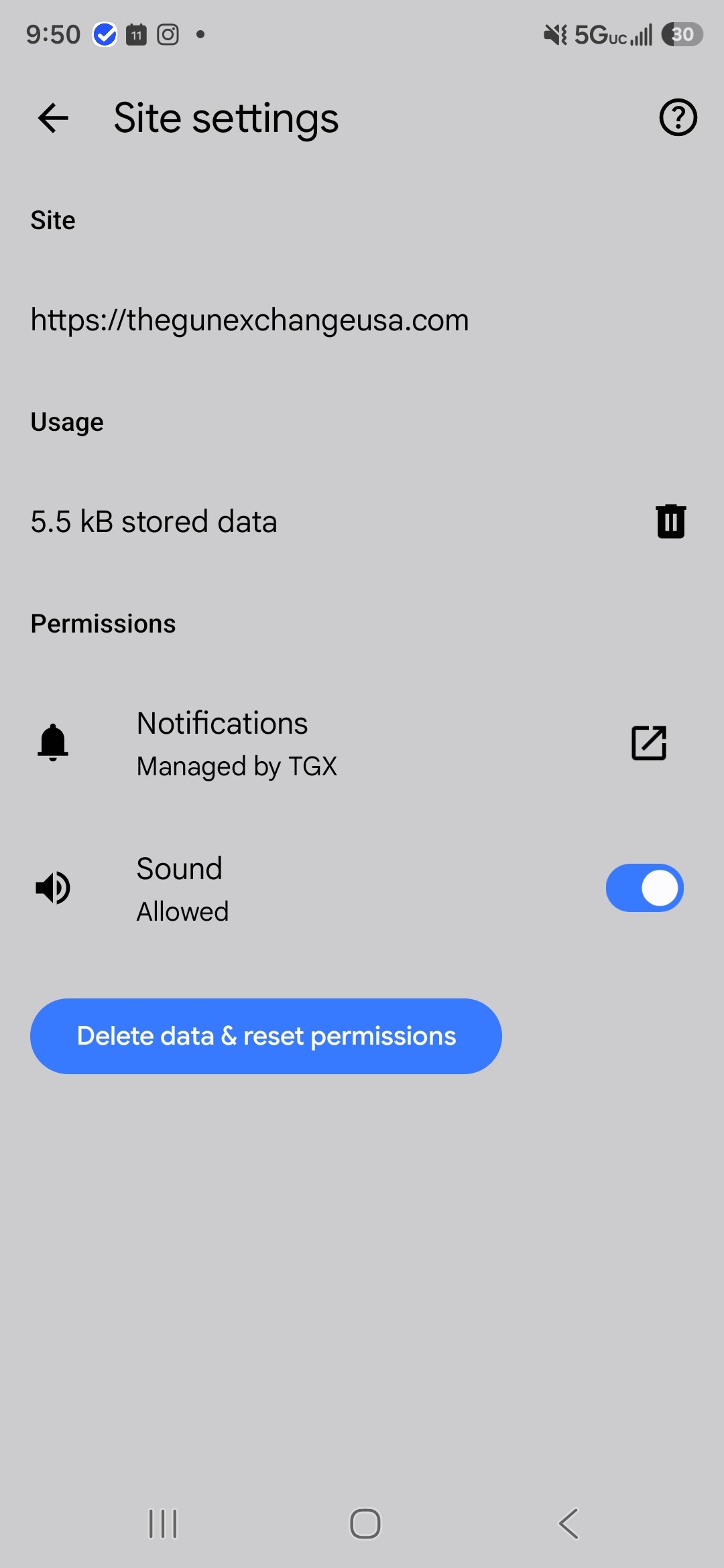
- Tap Site settings — the row with the gear.
- Tap the link icon next to Notifications ("Managed by TGX"), and make sure Sound is toggled on.
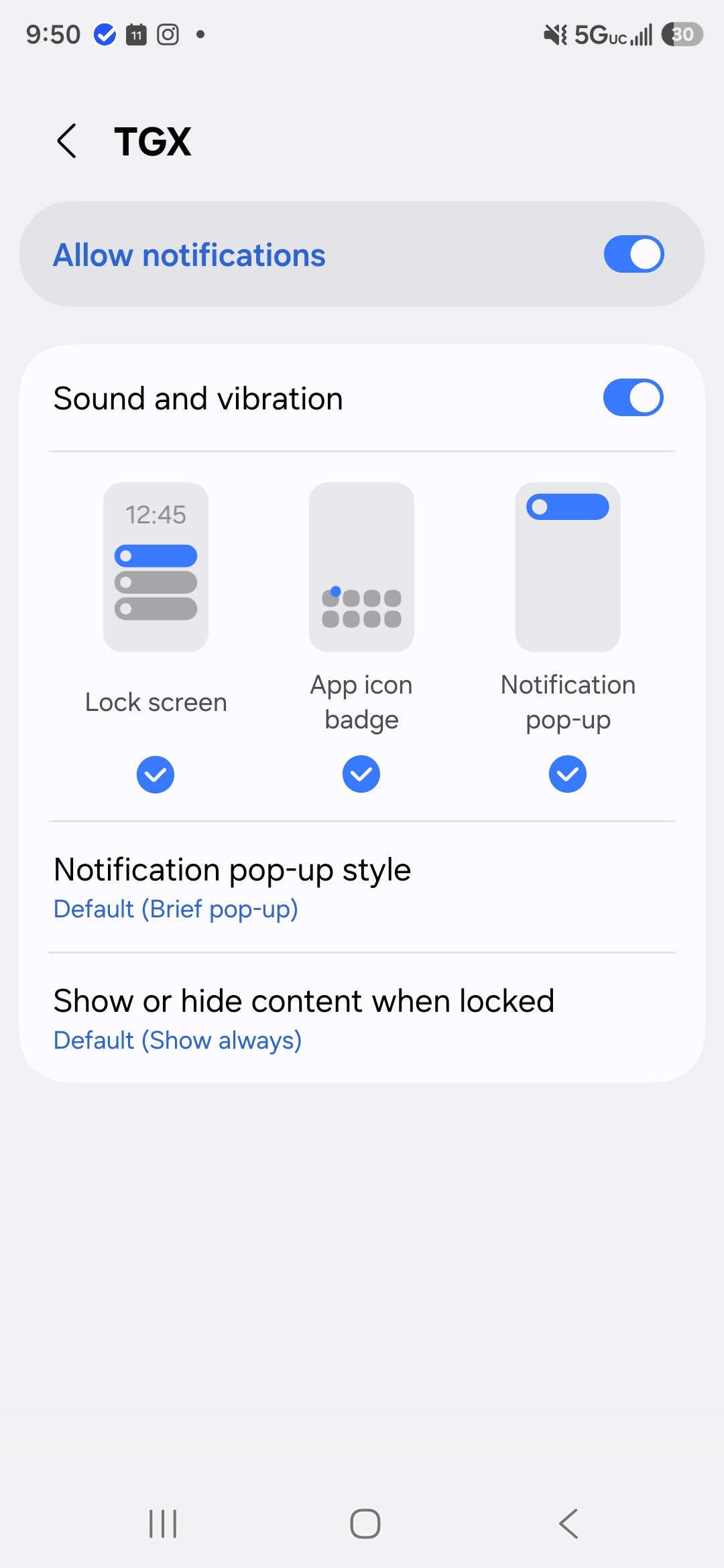
- Turn on Allow notifications and Sound and vibration — alerts pop up on your screen like this.
What you'll be alerted about
New listings from sellers you follow
Offers and counter-offers
New messages
FFL transfer updates
Push alerts are optional — email alerts keep you covered either way.